How to install Claude Code on Windows
One PowerShell command installs Claude Code on Windows. On our stock Windows 10 test machine it finished in under half a minute, and then typing claude did nothing, because the installer didn't add its folder to PATH. Below: the install, the two-line PATH fix, native Windows versus WSL, and the errors you're most likely to see.
Tested by us on 11 November 2026.
Before you start
- Windows 10 version 1809 or later, Windows 11, or Windows Server 2019 or later.
- At least 4 GB of RAM and a 64-bit processor (x64 or ARM64).
- An internet connection while you work, not only during the install.
- A paid plan: Claude Pro, Max, Ultra, Team or Enterprise, or a Console account with API credit. The free claude.ai plan does not include Claude Code.
You don't need admin rights. Everything lands in your own user folder under C:\Users\<you>\.local, and you don't need Node.js either, because the recommended install is a standalone program.
Install Claude Code in four steps
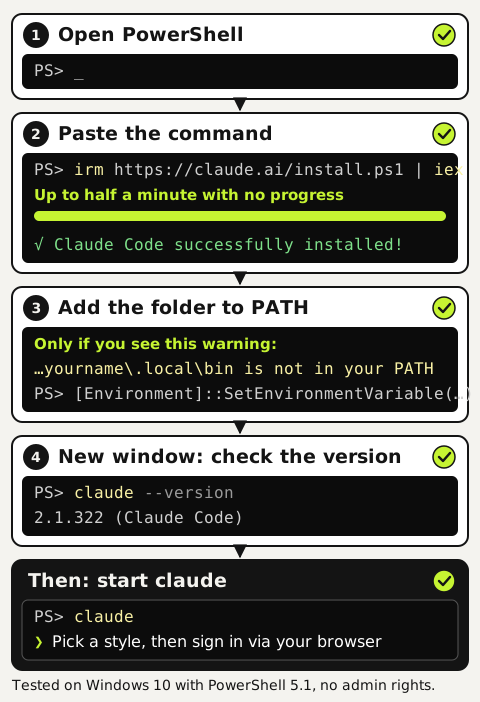
Open PowerShell
Search the Start menu for PowerShell and open Windows PowerShell. Your prompt starts with
PS C:\. If there's noPS, you're in Command Prompt (CMD). That works too, but you'll need the CMD command from the table below these steps.Run the installer
Paste this line and press Enter. The installer shows no progress while it downloads. In our two test runs the screen stayed blank for 26 and 15 seconds before the success message appeared, so don't cancel early.
powershellirm https://claude.ai/install.ps1 | iexAdd the install folder to PATH
Read the output to the end. If it says
Native installation exists but C:\Users\<you>\.local\bin is not in your PATH, Windows can't find theclaudecommand yet. Not sure? Run$env:PATH -split ';' | Select-String '\.local\\bin'. No output means the folder is missing, and these two lines add it to your user PATH for good. Run them only once, even ifclaudestill fails in this window: a second run adds the folder twice.powershell$currentPath = [Environment]::GetEnvironmentVariable('PATH', 'User') [Environment]::SetEnvironmentVariable('PATH', "$currentPath;$env:USERPROFILE\.local\bin", 'User')Open a new window and check the version
Close PowerShell and open a fresh window, because the old one still has the old PATH. Type
claude --version. A version number such as our2.1.322 (Claude Code)means you're done.powershellclaude --version
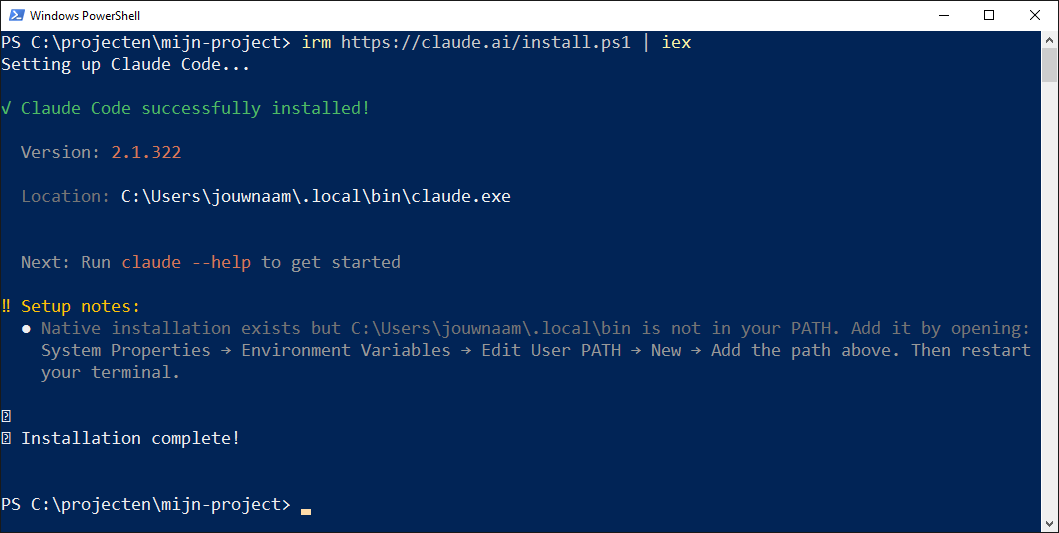 (opens at full size)
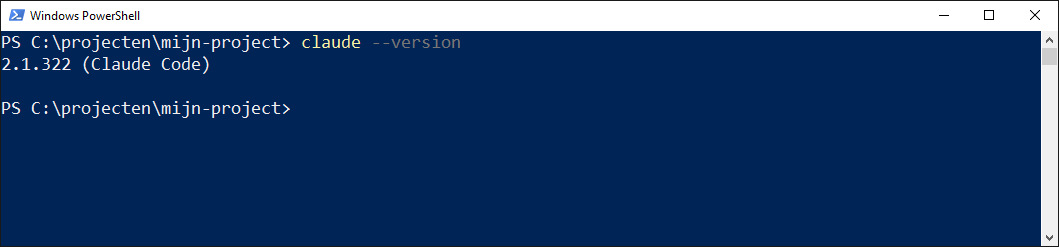 (opens at full size)
| Method | Command | Updates |
|---|---|---|
| PowerShell (recommended) | irm https://claude.ai/install.ps1 | iex | Automatic, in the background |
| Command Prompt (CMD) | curl -fsSL https://claude.ai/install.cmd -o install.cmd && install.cmd && del install.cmd | Automatic, in the background |
| WinGet | winget install Anthropic.ClaudeCode | Manual: winget upgrade Anthropic.ClaudeCode |
npm still works (npm install -g @anthropic-ai/claude-code, Node.js 22 or later), but we skip it on Windows. PowerShell's execution policy can block the launcher scripts npm creates, and according to the docs the npm package installs the same native binary as the installer.
Sign in
In PowerShell, go to your project folder and type claude. On the first run, Claude Code asks which text style reads best in your terminal: pick one with the arrow keys and press Enter. Your browser then opens a sign-in page. Log in with the account that pays for your plan, or with your Console account, then switch back to the terminal and start working.
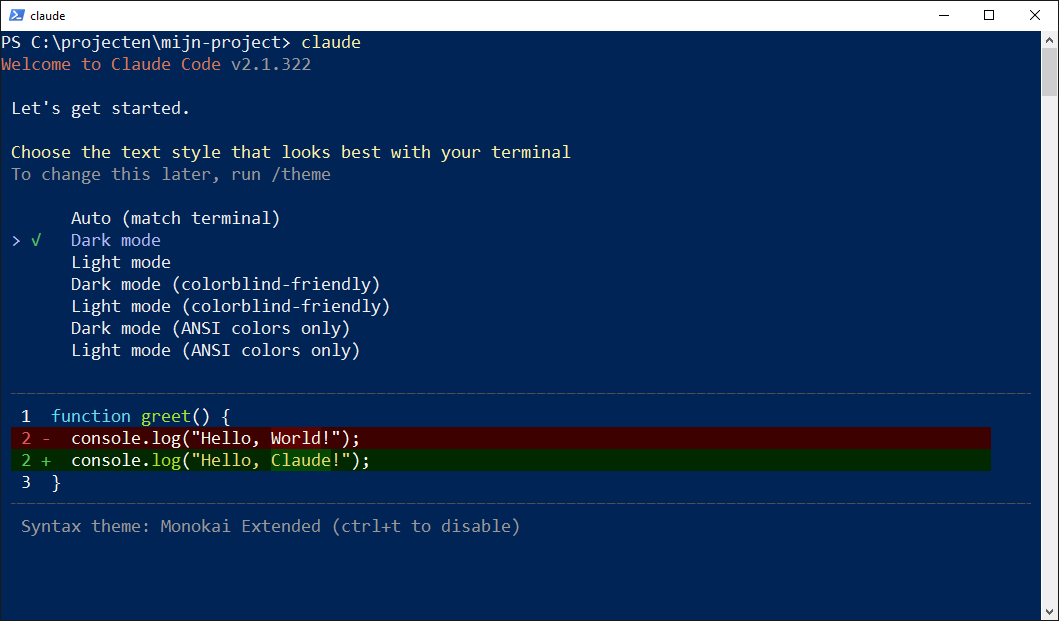 (opens at full size)
claude, you pick a text style. Sign-in comes right after.Do you need Git for Windows?
It's optional, and we install it on every machine. Claude Code runs commands through a shell. With Git for Windows installed it uses Git Bash; without it, it falls back to PowerShell. Most scripts and examples you'll find assume Bash, and Git gives you version control, so you can roll back a change Claude Code made with one command.
If Git is installed but Claude Code can't find Git Bash, point it at bash.exe in settings.json, which lives in the .claude folder inside your user folder:
{
  "env": {
    "CLAUDE_CODE_GIT_BASH_PATH": "C:\\Program Files\\Git\\bin\\bash.exe"
  }
}
Native Windows or WSL?
Claude Code runs on Windows directly or inside WSL, the Linux environment built into Windows. Pick the one that matches where your projects live.
| Native Windows | WSL 2 | |
|---|---|---|
| Requirements | Nothing extra; Git for Windows is optional | WSL 2 enabled, with a Linux distribution |
| Where you install | PowerShell or CMD | The WSL terminal, with the Linux command |
| Sandboxed commands | Not supported | Supported |
| Best for | Windows projects and Windows tools | Linux toolchains such as Docker or Python servers |
If your code and tools live on Windows, install natively. If your project runs on Linux, or you want commands to run in a sandbox, use WSL 2.
With WSL, watch where your project lives. Microsoft recommends keeping files in the Linux file system when you work from a Linux shell, so /home/<you>/project rather than /mnt/c/Users/<you>/project. On the mounted Windows drive, every file Claude Code reads or writes goes through a slower layer. We haven't tested the WSL route ourselves; this part follows the Anthropic and Microsoft documentation, including the sandbox support in the table.
For WSL, open your Linux distribution first and install there with curl -fsSL https://claude.ai/install.sh | bash. You then launch claude from that WSL terminal, not from PowerShell.
Check the install
claude doctor prints a health report of your installation without starting a session. Ours showed Running: native (2.1.322), Platform: win32-x64 and Auto-updates: enabled, plus a PATH warning that only went away in a new window.
The native install keeps itself current: updates download in the background and take effect the next time you start claude. A WinGet install stays on its version until you upgrade it yourself.
Common errors and fixes
We hit the PATH error and the && error ourselves on our test machine. The other errors and fixes come from the official troubleshooting guide; we didn't reproduce all of them.
| Error | Cause | Fix |
|---|---|---|
'irm' is not recognized | You're in CMD, not PowerShell. | Open PowerShell, or use the CMD command from the table above. |
The token '&&' is not a valid statement separator | You pasted the CMD command into PowerShell. | Run irm https://claude.ai/install.ps1 | iex instead. |
'claude' is not recognized | .local\bin isn't on your PATH. | Do step 3, then open a new window. |
Could not create SSL/TLS secure channel | Windows PowerShell 5.1 is using an old TLS version. | Run [Net.ServicePointManager]::SecurityProtocol = [Net.SecurityProtocolType]::Tls12, then the installer, in the same window. |
Claude Code does not support 32-bit Windows | You opened the 32-bit (x86) PowerShell. | Open plain Windows PowerShell, without (x86) in the name. |
The process cannot access the file | An earlier attempt or your antivirus is holding the download. | Close other PowerShell windows, delete .claude\downloads in your user folder and retry. |
Uninstall
These two lines remove the program and every downloaded version. We ran them after our test, and nothing of the install was left behind.
Remove-Item -Path "$env:USERPROFILE\.local\bin\claude.exe" -Force
Remove-Item -Path "$env:USERPROFILE\.local\share\claude" -Recurse -Force
Your settings and session history live separately, in the .claude folder and the .claude.json file in your user folder. Delete those only if you want a clean slate. The VS Code extension and the desktop app recreate the folder if they're still installed.
Questions
Is Claude Code free on Windows?
Installing it is free, but you need a paid plan to use it: Claude Pro, Max, Ultra, Team, Enterprise, or a Console account with API credit. The free claude.ai plan has no Claude Code access.
Do I need admin rights to install Claude Code?
No. The installer writes only to your user folder, and the PATH change applies to your account, not the whole machine.
Does Claude Code work on Windows 10?
Yes, from version 1809 onwards. We tested on Windows 10 22H2 (64-bit) with the built-in Windows PowerShell 5.1. Windows 11 and ARM64 are in the official requirements too, but we haven't tried them ourselves.
Can I use Claude Code without the terminal?
Yes. The Claude desktop app for Windows gives you Claude Code in a regular window. If you've never used a terminal, that's the easiest place to start.
Sources
More in claude in practice
- How to Install Claude Code on a MacInstall Claude Code on a Mac with one Terminal command, then fix the PATH step the installer leaves to you. Tested on Apple silicon, plus Homebrew and npm.
- Installing Claude Code: Pick the Right Version, Install It, Run a First TaskInstall Claude Code with one command, tested on a fresh Mac, Ubuntu and Windows 10: which version to pick, the PATH fix, real errors and a first task.
- How to Update Claude Code, Choose a Channel and Pin a VersionUpdate Claude Code with one command, switch to the stable channel or stop updates. Tested on Windows: 2.1.300 to 2.1.322, stable gave 2.1.311.
- Build a Website with Claude Code Without the Generic AI LookWe built one site twice with Claude Code: one prompt versus a design decision first. Screenshots at 1440 and 390 px, the prompts, and the checks we use.
Also useful
- AGENTS.md Explained: One Instruction File for Codex, Claude Code and Other AgentsAGENTS.md is the shared instruction file for coding agents. How Codex reads it, when Claude Code does, and the one-line fix we tested.
- How to Build an MCP Server: A Tested Python and Node ExampleBuild a working MCP server in Python or Node, test it without a model, inspect it, then connect it to an AI app. Full code and the errors we hit.
- Building n8n workflows with Claude Code: what works and what you still checkClaude Code built, validated and tested three n8n workflows through n8n's MCP server. What worked, what you still check yourself, and the prompt to copy.