Claude Code Tutorial: Plan, Build, Review and Commit One Real Project
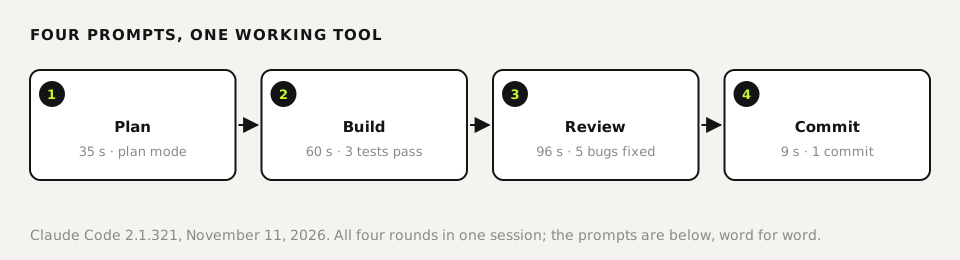
The most reliable way to use Claude Code is in four rounds: plan first, build with tests, have it review its own work, then commit. That's how we built a sales tax calculator in four prompts and 3 minutes 19 seconds of run time. The review round found five bugs the first version shipped with. Below are all four prompts word for word, what came back, and the parts Claude couldn't check for us.
Tested by us on 11 November 2026.
Before you start
- Claude Code installed and signed in. If not, see installing Claude Code.
- An empty project folder with Git, so every step can be undone.
- A small idea you can verify yourself. We picked a tax calculator because a pocket calculator can check every answer.
cd into the folder and run claude. In a normal session you type the four prompts one after another. We sent them with claude -p and resumed the same session each time so we could time every round; the result is the same.
Round 1: ask for a plan
Press Shift+Tab until the footer shows plan mode. In plan mode Claude reads and proposes but doesn't touch files. Then send:
I want a sales tax calculator: a single HTML file with no external libraries. You enter an amount and a tax rate in percent, and choose whether the amount includes tax or not. The page shows the amount before tax, the tax and the total, rounded to cents, in US dollars. Make a plan first, no code yet.The plan came back in 35 seconds: page layout, input rules, and the decision to do all money math in whole cents to dodge floating-point errors. It also planned to accept $1234.56, 1,234.56 and 8.875 as input. Read the plan now; changing your mind here costs nothing.
Round 2: build it, with tests
Switch plan mode off with Shift+Tab and send the second prompt. Ask for tests in the same breath as the build, not afterwards.
Carry out the plan. Also write a small test file that checks the calculation with three examples, and run it with node.Sixty seconds later there were two files, index.html and test.js, and three passing tests, including $19.99 at 8.875% giving $1.77 tax. Claude also said plainly that it hadn't opened the page in a browser, so the layout and live updating were untested. That's your job.
Round 3: make it review its own work
Beginners skip this round. It's where most of the value was in our test:
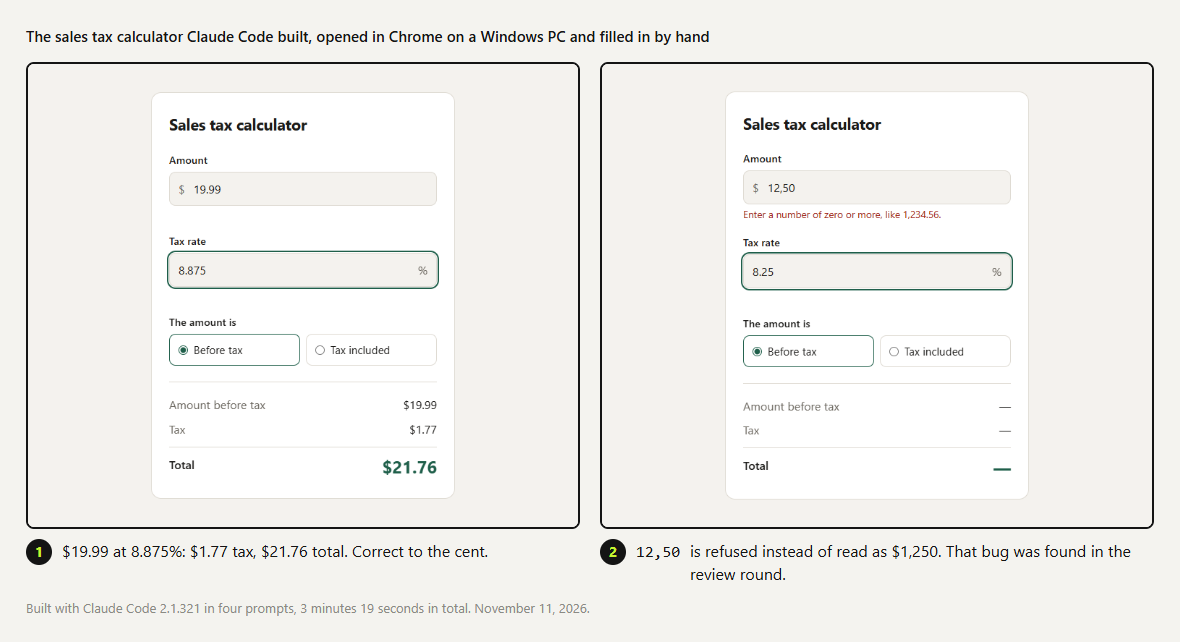
Review your own work critically: look for bugs in rounding and with empty, negative or very large amounts, and with odd tax rates. Fix what you find, add a test for each bug, and run the tests again.In 96 seconds Claude reported that the rounding held up, but found five bugs in how input was read. A decimal comma in the amount was silently dropped, so 12,50 became $1,250.00. The same happened with 8,25 as a rate, which became 825%. A stray $ inside the amount was ignored, a rate typed as 8.25% was refused, and tiny rates were rounded away. All five were fixed, each got its own test, and the suite went to 18 passing checks.
 (opens at full size)
Then we opened the page in Chrome on a Windows PC and typed into it. $19.99 at 8.875% showed $1.77 tax and $21.76 total; 19.99 × 0.08875 is 1.774, so that's right. Typing 12,50 now showed an error instead of a wrong number. Tests prove the math; only you can see whether the page does what you meant.
Round 4: commit
Commit the work to git with a short, clear commit message.Nine seconds: one commit, "Add sales tax calculator with calculation tests", containing only index.html and test.js. Claude left our timing files out on its own, noting it hadn't created them. From here, git diff shows every later change and Git can undo it.
What to take from this
- Plan first. Half a minute of planning shows mistakes before there's code.
- Ask for tests in the build prompt. Claude then builds toward something you can check.
- Review in a separate round, and say where to look. Ours named rounding, empty input, limits and odd rates, and that's where the five bugs were.
- Open the result yourself. Claude said twice that it hadn't seen the page in a browser.
- Commit each working step. It's your safety net when the next prompt breaks something.
We ran the same four rounds for a Dutch VAT calculator on the same day. The review round there found three bugs, also all in input handling and none in the math. Two runs make a small sample, but the pattern was the same: the arithmetic was right the first time, and reading what people type was where things broke.
Questions
How do I use Claude Code for the first time?
cd into a project folder, run claude, and describe what you want in plain English. Start in plan mode (Shift+Tab) so you see the approach before any file changes.
How long does a small project take?
Our calculator took four prompts and 3 minutes 19 seconds of run time. Add ten to fifteen minutes for reading the plan, checking the result and testing in a browser.
Do I need to know how to code?
Not to follow these steps. You do need to be able to check the result, so pick a first project whose output you can verify by hand.
Why not do everything in one prompt?
You lose the points where you can steer. In our test, the separate review round caught five bugs that were in the first build.
Sources
- Claude Code docs: Quickstart checked on
- Claude Code docs: Common workflows checked on
- Claude Code docs: Permission modes (plan mode) checked on
More in claude in practice
- Installing Claude Code: Pick the Right Version, Install It, Run a First TaskInstall Claude Code with one command, tested on a fresh Mac, Ubuntu and Windows 10: which version to pick, the PATH fix, real errors and a first task.
- Claude Code Commands: The Cheat Sheet We Use Every DayThe Claude Code commands, flags and shortcuts worth learning first, on one printable cheat sheet, plus how to make your own slash command. Tested Nov 2026.
- Claude Code Skills: How to Build, Install and Test a SkillBuild a Claude Code skill with a bundled script in ten minutes. We tested when it loads, when it doesn't, and what an unused skill costs in context.
- Build a Website with Claude Code Without the Generic AI LookWe built one site twice with Claude Code: one prompt versus a design decision first. Screenshots at 1440 and 390 px, the prompts, and the checks we use.
Also useful
- AGENTS.md Explained: One Instruction File for Codex, Claude Code and Other AgentsAGENTS.md is the shared instruction file for coding agents. How Codex reads it, when Claude Code does, and the one-line fix we tested.
- How to Build an MCP Server: A Tested Python and Node ExampleBuild a working MCP server in Python or Node, test it without a model, inspect it, then connect it to an AI app. Full code and the errors we hit.
- Building n8n workflows with Claude Code: what works and what you still checkClaude Code built, validated and tested three n8n workflows through n8n's MCP server. What worked, what you still check yourself, and the prompt to copy.