Claude Code Plan Mode: How to Use It, and When It Pays Off
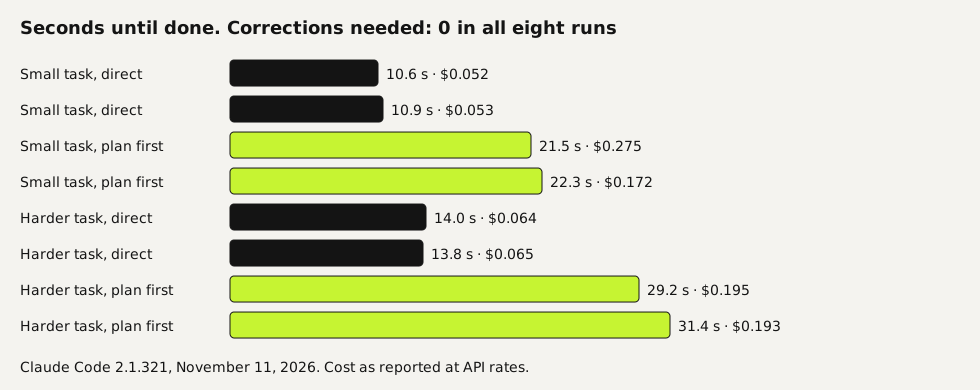
Plan mode makes Claude Code research your project and write a plan before it touches any file. You turn it on with Shift+Tab or claude --permission-mode plan. We ran a small test, two runs per variant on one project. On clear tasks plan mode changed nothing: every run passed a hidden acceptance test first time, and planning took about twice as long at 3.0 to 5.3 times the cost. On an ambiguous request it earned its keep. The plan asked what "repeat customer" meant, while the direct run guessed wrong and reported success.
Tested by us on 11 November 2026.
What plan mode does
According to the docs, plan mode lets Claude Code read files and run shell commands to explore, but blocks edits to your source until you approve a plan. When the plan is ready you get three choices: approve and let it run with auto-accepted edits, approve and review each edit yourself, or keep planning. Press Ctrl+G to edit the plan in your own text editor first. Plans are saved as files in ~/.claude/plans/.
Turn on plan mode
Switch into plan mode
In a running session, press Shift+Tab until the mode line says plan mode. The cycle goes Manual, accept edits, plan. For a single request, start the prompt with
/plan. To start a whole session in plan mode, use the flag below.bashclaude --permission-mode planDescribe the outcome, not the steps
Say what should be true when it's done. Our test project was a small invoicing script in Python (the file name,
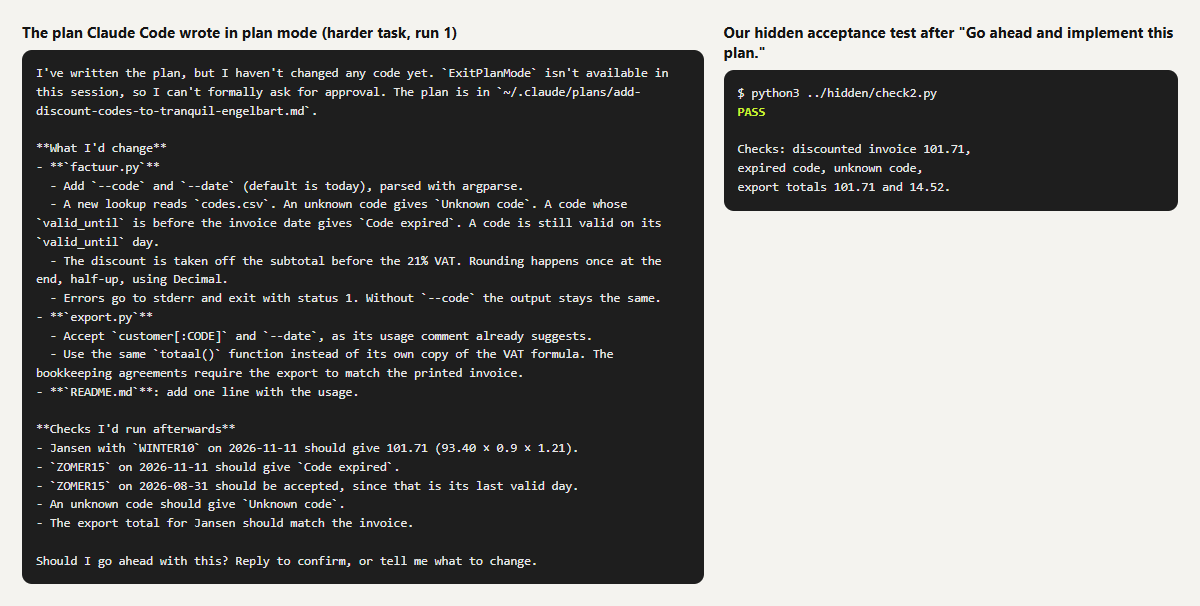
factuur.py, is Dutch), so the request read: "Add discount codes to factuur.py. Usage: python3 factuur.py <customer> --code CODE [--date YYYY-MM-DD]." Claude Code then reads what it needs and writes the steps itself.Read the plan for assumptions
Check three things: which files it will change, what it assumes about unclear rules, and which checks it says it will run. If something is off, choose to keep planning and say what's wrong.
Approve and choose how edits are handled
Approve with auto-accepted edits when the plan is right and the change is small. Approve with manual review when you want to see each edit. Approving leaves plan mode and Claude Code starts editing.
 (opens at full size)
What we tested
We built a small invoicing project and asked for discount codes with expiry dates. The small task had all rules in the README. The harder one hid the rules in one of five files in a docs folder and needed a second file, the monthly export, to change as well. A hidden script, which Claude Code never saw, checked the totals, the error messages and the export. If it failed, we pasted the failures back as a correction, up to three times.
| Task | Variant | Corrections | Time | Cost at API rates |
|---|---|---|---|---|
| Small: rules in README | Direct | 0 and 0 | 10.6 s and 10.9 s | $0.052 and $0.053 |
| Small: rules in README | Plan first | 0 and 0 | 21.5 s and 22.3 s | $0.275 and $0.172 |
| Harder: rules in docs, two files | Direct | 0 and 0 | 14.0 s and 13.8 s | $0.064 and $0.065 |
| Harder: rules in docs, two files | Plan first | 0 and 0 | 29.2 s and 31.4 s | $0.195 and $0.193 |
Without a plan, Claude Code still found the agreements file in docs, applied the discount before VAT and updated the export. On these two tasks the plan didn't make the result better. It took about twice as long and cost 3.0 to 5.3 times as much as the direct run of the same task. With two runs per cell on one small project, take that as a sign, not a rule.
Where the plan made the difference
Then we gave both variants a request with a gap in it: "Give repeat customers 10% off their invoice." Our hidden test assumed what a bookkeeper would mean: a customer whose first order was more than a year ago. We didn't say that.
| Direct | Plan first | |
|---|---|---|
| What Claude Code assumed | Any customer whose first order is before the invoice date | The same assumption, written in the plan as a question |
| What it reported | "The figures came out as expected" | Two questions: what counts as repeat, and whether the discount stacks with discount codes |
| Hidden test after the first step | Failed: a customer of 12 days got the discount | No code yet |
| Our one message | Correction after the code was written | Answer before the code was written |
| Final result | Pass | Pass |
| Claude Code's time and cost in total | 28.6 s, $0.18 (first attempt plus the fix) | 33.3 s, $0.19 (plan plus implementation) |
Questions before I implement
1. What counts as a "repeat customer"? I assumed their first_order is before the
   invoice date. De Vries first ordered on 2026-10-30, so they'd count as repeat on
   today's date. Do you want a minimum gap instead, such as a year?
2. Should the repeat discount combine with discount codes from codes.csv, which
   export.py accepts as customer:CODE? I assumed they don't stack and the larger
   one wins.
The questions at the end of the plan, unedited.
Both ended up correct after one message from us, at nearly the same cost. The difference is what would have happened without our hidden test. The direct run shipped a wrong rule and said its figures were as expected. The plan put the gap in front of us before any code existed. One thing to watch: the same plan quoted example totals that didn't match the real invoice. Read a plan's numbers as critically as its assumptions.
When to plan first
| Plan first | Skip the plan |
|---|---|
| Changes you can't undo easily: database migrations, deletes, anything that sends data out | Small changes in a project under version control, where git diff shows everything |
| You don't know the codebase and want to see which files it plans to touch | You already know which file changes and how |
| The request has rules that could be read two ways, and you want to see how Claude Code reads them | The rules are written down and the task is short |
| Someone else has to approve the change before it happens | You're the only reviewer and you'll read the diff anyway |
How we work
We don't plan by default. Most changes go straight to the agent, and the checking happens at the end: tests, a review by a second agent and proof that it works before anyone calls it done. We plan first when a request contains a business word the code doesn't define, like "repeat customer" or "active subscription", and for anything that changes live data. If you want those rules applied in every session, put them in your CLAUDE.md file. To set which actions always need your approval, use permissions and hooks.
Questions
How do I turn on plan mode in Claude Code?
Press Shift+Tab in a session until it shows plan mode, start a prompt with /plan, or start Claude Code with claude --permission-mode plan. To make it the default for a project, set "defaultMode": "plan" in .claude/settings.json.
Does plan mode make Claude Code more accurate?
On clear tasks, not in our test: direct and plan-first runs all passed on the first try. On an ambiguous request the plan asked the right question before writing code, while the direct run guessed wrong. Both were fixed with one message.
Can Claude Code run commands in plan mode?
Yes, to explore. It reads files and runs shell commands, but it doesn't edit your source files until you approve the plan.
Where are Claude Code plans saved?
As Markdown files in ~/.claude/plans/, unless you set a different plansDirectory. Our run saved its plan there under a generated name.
Sources
- Claude Code: Permission modes (plan mode) checked on
- Claude Code: Configure permissions checked on
More in claude in practice
- CLAUDE.md and Claude Code Memory: A Template We TestedHow Claude Code memory works through CLAUDE.md, with a template we tested: rules that stick, background files that load only when needed, and AGENTS.md.
- Claude Code Permissions: Let It Work Freely Without Breaking AnythingSet up Claude Code permissions so it works without constant prompts but can't delete or leak what matters. Tested settings file, deny rules and a blocking hook.
- Claude Code Subagents: When They Help, and When They Only Cost MoreWe tested Claude Code subagents on real tasks: little context saved, up to twice the cost, and a reviewer that took the author's view. Two subagent files.
- Claude Code Best Practices: Six Habits, Each Tested Before We Recommend ItSix Claude Code best practices we tested on the same small project: rules with reasons, proof before done, hooks, when to plan and when subagents pay off.
Also useful
- AGENTS.md Explained: One Instruction File for Codex, Claude Code and Other AgentsAGENTS.md is the shared instruction file for coding agents. How Codex reads it, when Claude Code does, and the one-line fix we tested.
- How to Build an MCP Server: A Tested Python and Node ExampleBuild a working MCP server in Python or Node, test it without a model, inspect it, then connect it to an AI app. Full code and the errors we hit.
- Building n8n workflows with Claude Code: what works and what you still checkClaude Code built, validated and tested three n8n workflows through n8n's MCP server. What worked, what you still check yourself, and the prompt to copy.