A tour of your home screen
After signing in you land on your home screen. Everything has a fixed place — here is the map.
Your apps
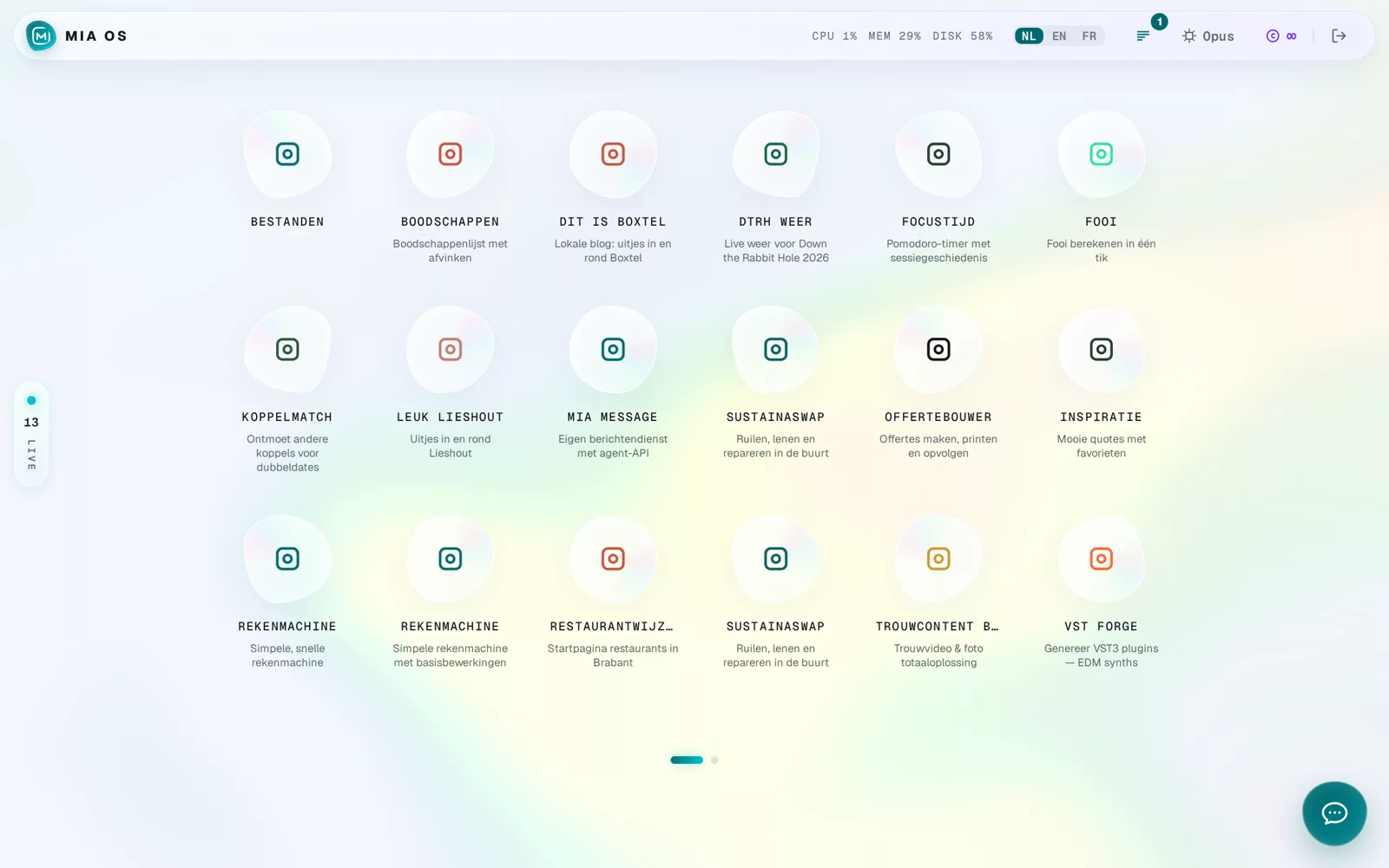
Every icon is an app Mia built for you. Click to open it. Dots at the bottom appear when you have multiple pages of apps — swipe or click to browse.
The status bar at the top
- CPU / MEM / DISK — the live health of your own server.
- NL EN FR — switch your entire OS to another language in one click.
- The AI model and your credits sit on the right, next to the logout button.
Left and bottom right
On the left you see how many apps are live (publicly reachable). Bottom right is the most important button of your OS: the Mia button. It opens the chat or starts a new build — more on that in the next tutorials.
Frequently asked questions
Can I move icons around?
Ask Mia in the chat — she arranges your home screen the way you want.
What does the number next to LIVE mean?
That many of your apps are currently publicly reachable at their own web address.
Dig deeper
Signing in to your Mia OS
How to sign in to your own Mia OS: open your personal web address, enter your e-mail and password and click Unlock.
Read more →Start hereChatting with Mia inside your OS
Open the chat via the Mia button and ask anything in plain language: change apps, system status, files — with attachments and history.
Read more →