Opening and managing apps
Every app in Mia OS opens in its own window — with built-in management, no setup required.
Opening an app
Click an icon on your home screen. The app opens in a window; a tab appears at the top so you can switch quickly between open apps. The buttons at the top right minimise, maximise or close the window.
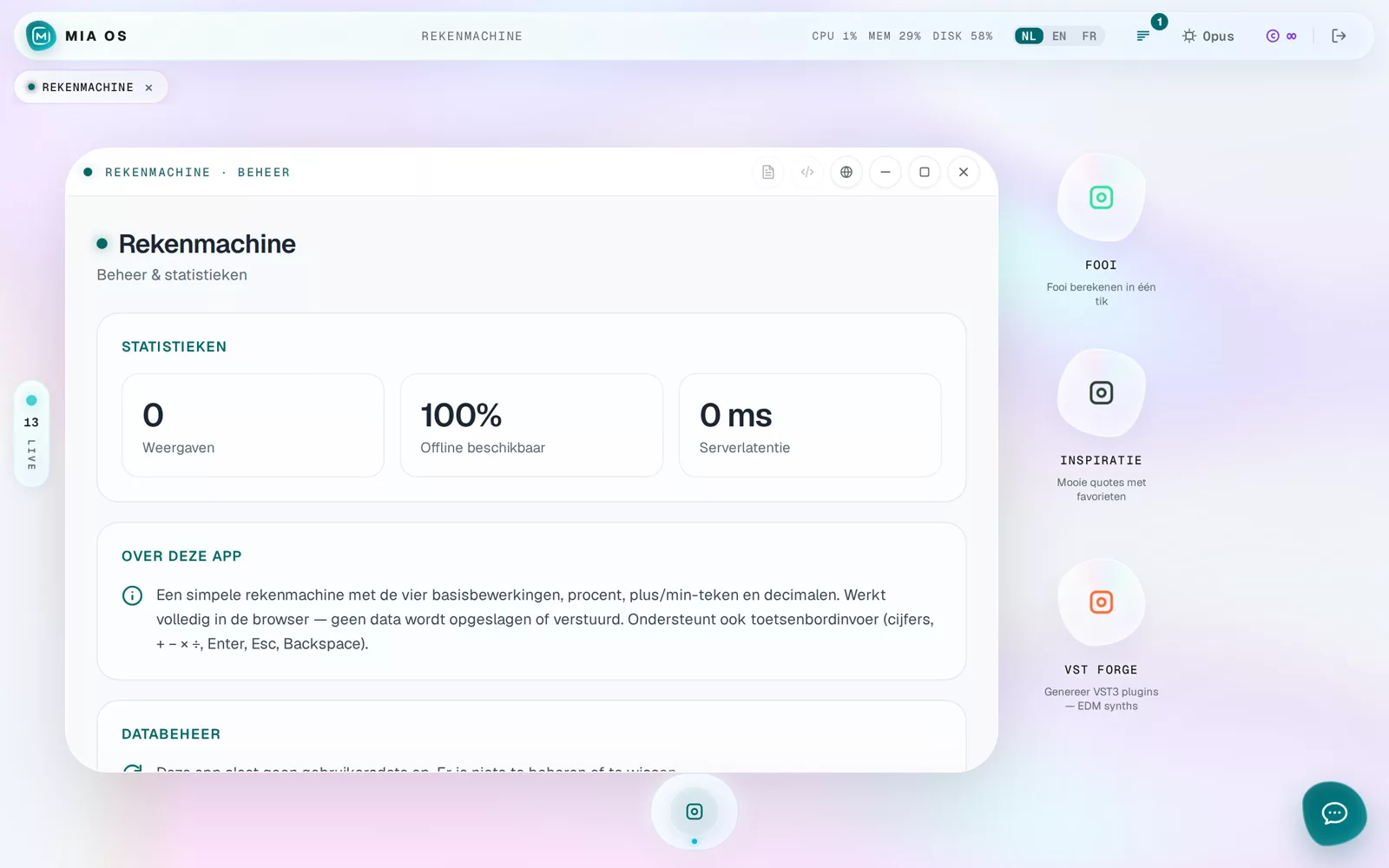
The management page
Every app has a Manage view with:
- Statistics — views, offline availability and server latency.
- About this app — what the app does and how it works, in plain language.
- Data management — what data the app stores and how to wipe or export it.
The buttons in the window bar
Each window bar has shortcuts: the work log (everything Mia did to this app), the debug console (for errors) and the live link to the app’s public web address.
Frequently asked questions
Can I open multiple apps at once?
Yes. Every app gets its own window and tab; use the tab bar to switch instantly.
Where do I see what Mia changed in an app?
Open the work log from the window bar — every change is listed in plain language.
Dig deeper
A tour of your home screen
The Mia OS home screen at a glance: your apps, the status bar, the language switch, the live list and the Mia button.
Read more →Start hereThe debug console: finding and reporting errors
Every app has a built-in debug console. See errors and messages live, filtered by type, and report them to Mia in one sentence.
Read more →