The debug console: finding and reporting errors
Is an app acting strangely? The debug console shows what happens under the hood — no technical background needed.
Opening it
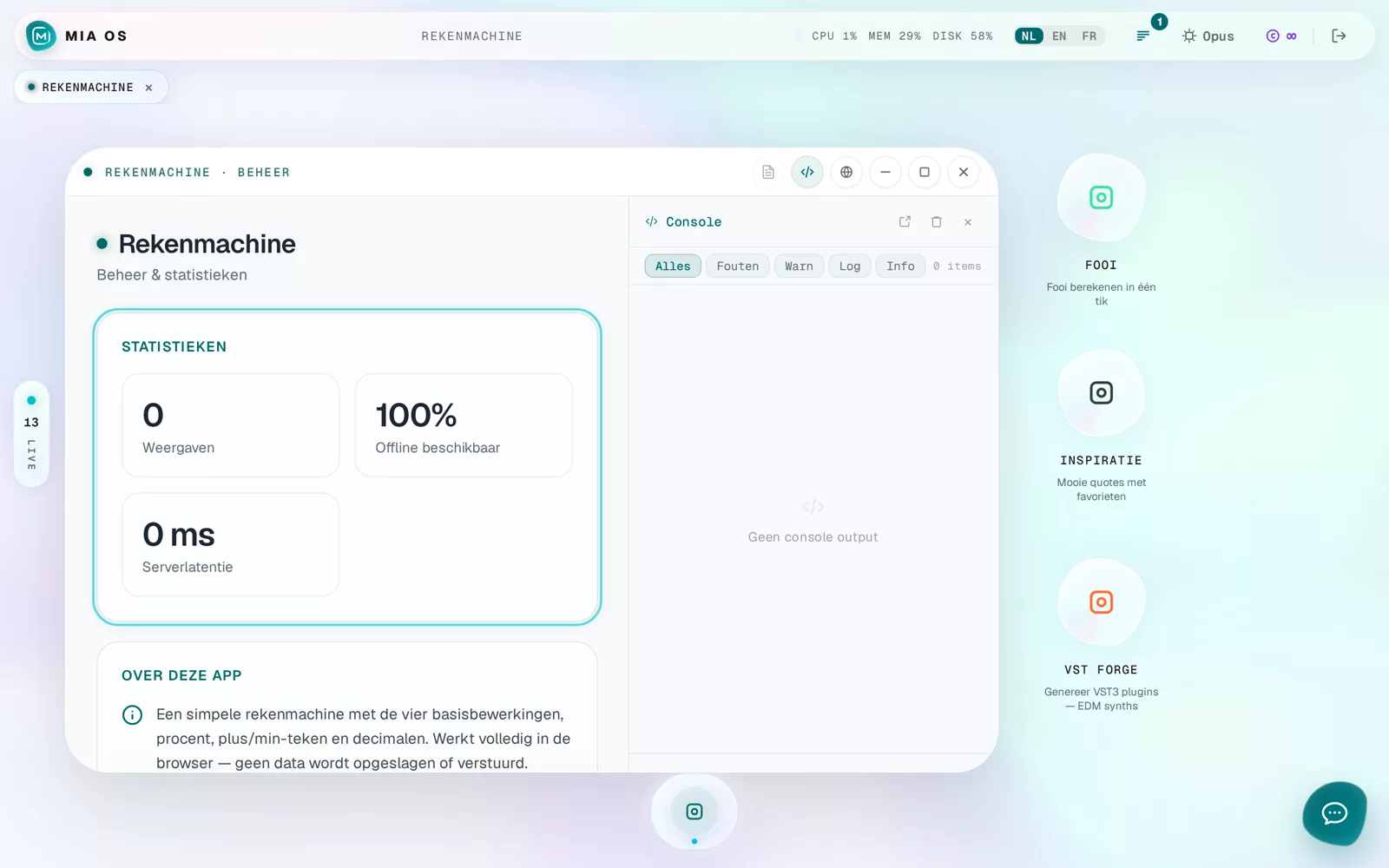
Open an app and click the </> icon in the window bar. The console slides open next to the app. The badge on the button changes colour on errors, so you instantly see if something is wrong.
Reading it without technical knowledge
At the top you filter by All, Errors, Warnings, Log or Info. Red is an error, orange a warning. "No console output" means: everything runs clean. That is honestly all you need to know.
Reporting to Mia
Spotted an error? Open the chat and simply say "my app shows an error in the console" — Mia reads the same console, finds the cause and fixes it. You can also detach the console into its own window to keep an eye on it.
Frequently asked questions
Do I have to watch the console myself?
No. Mia monitors your apps herself; the console is there when you want to look yourself or report something specific.
What does the number on the badge mean?
The number of messages since you opened the app. Red = errors, orange = warnings.
Dig deeper
Opening and managing apps
Click an icon to open an app. Every app window has a management page with statistics, explanation and data management.
Read more →Go deeperHow Mia checks her own work
Mia doesn't just build: she tests, checks and fixes her own work before you see it. Here's how that self-correcting process works.
Read more →